
Planner Release Notes V2.7
⬇️ Production Downtime
Planner 2.7 includes production downtime. Downtime allows you to specify how much production should be reduced during specific date ranges. Downtime uses the same curtailment calculation as production interference and production limits, so downtime preserves total EUR by deferring production through time.
Downtime can be applied to groups of assets, which makes it really simple to apply facility-based or field-level downtime.
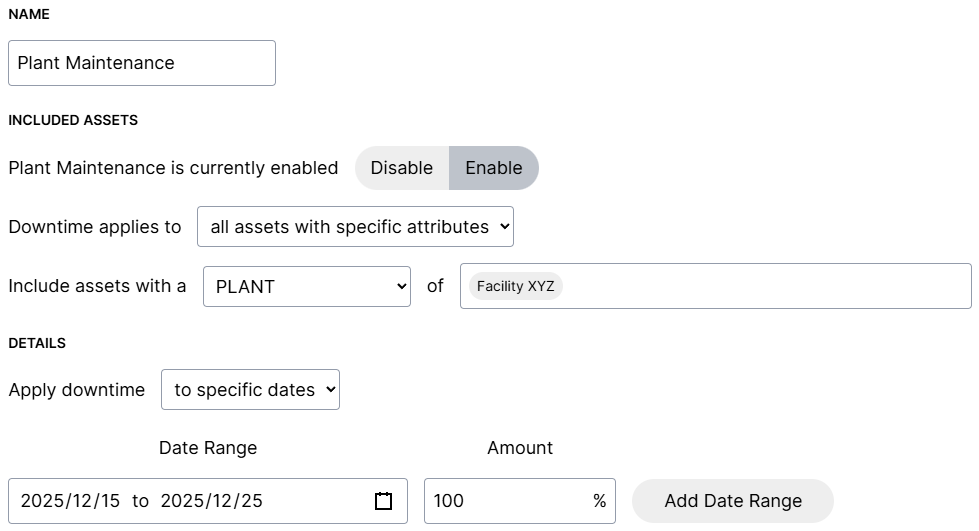
For example, if you want to forecast the impact of a gas plant being down for maintenance for a week, you can apply 100% downtime over a specific date range:
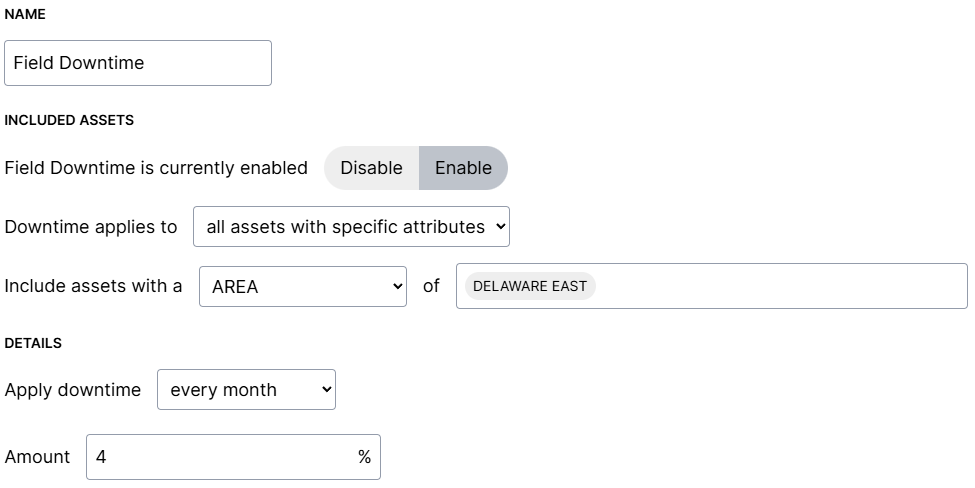
As another example, you can forecast typical maintenance downtime for different areas using a flat percentage, and apply it every month:
The downtime is included as part of curtailed production, so you can quickly compare potential vs. curtailed production in the metrics or production exports (Excel, Parquet, Spotfire):

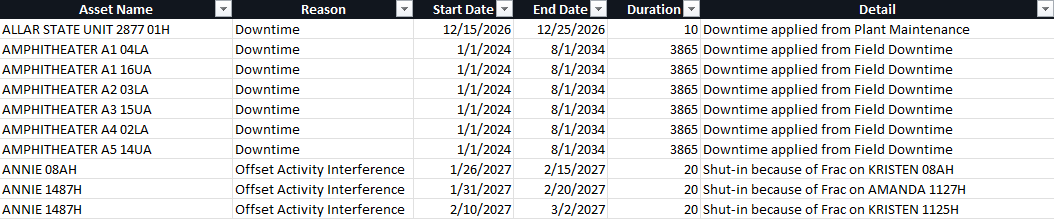
You can also see all downtime events on the Production Curtailment Events export:
🔁 Schedule Undo/Redo
Sometimes you might move an activity on your schedule, then change your mind and want to move it back. However it can be hard to keep track of the changes in your head, and you might not know where it was located before.
In the new Planner release you'll have a quick way to undo changes like these! Planner 2.7 adds undo and redo support for the Schedule tab.
This means you can undo (Ctrl-Z) or redo (Ctrl-Y) actions that you make from the schedule tab, like drag and drop and duration changes.
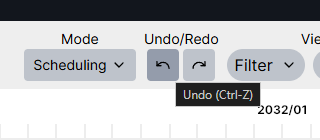
Undo and redo buttons are displayed in the toolbar for the Schedule tab. You can undo/redo up to 50 previous actions. Certain actions like performing imports or switching to another tab will clear the undo/redo history.
➗ Allocated Opex
Planner 2.7 allows expenses to be allocated across groups of assets. Allocated expenses are defined at a group level (e.g., facility or area), then allocated across each asset in that group. Allocated expenses can be used alongside regular asset expenses.
This makes it really easy to layer on allocated expenses, such as facility costs that you'd like to spread across all wells flowing to that facility. This avoids the need to manually allocate and assign those facility costs to individual wells, instead the Planner can do it for you.
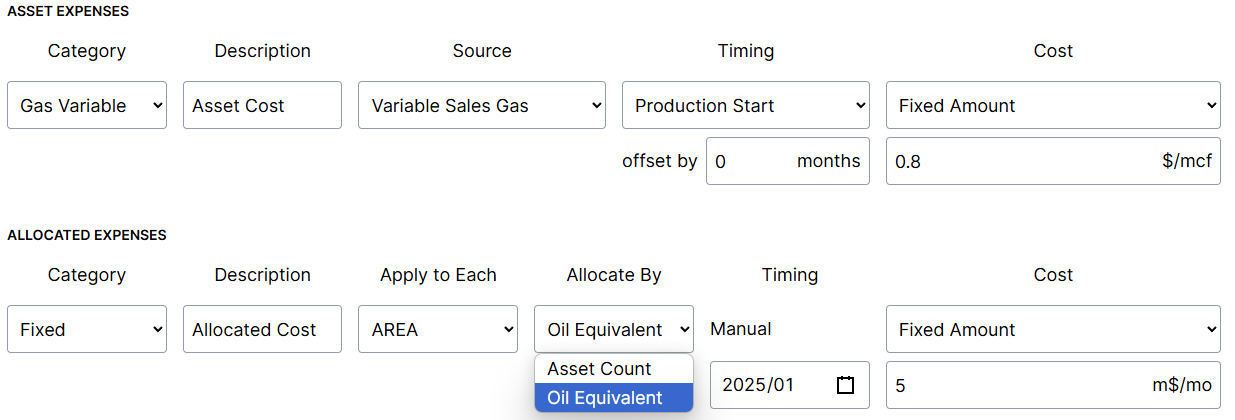
When you add an expense, you can specify whether the expense is an asset expense or an allocated expense. Allocated expenses can be allocated by Asset Count (spread equally across all producing assets in the group) or Oil Equivalent (spread cost based on each asset's oil equivalent volume).
As part of allocated expense support, both asset expenses and allocated expenses support formulas that change over time. Keep reading for more on this!
🔍 Lookup Tables Improvements
Lookup tables received a few upgrades in Planner 2.7 too!
The first change is that lookup tables now support parameters. Previously lookup tables required attributes to be used for all lookups, but parameters allow you to provide any value (not only attributes). For example, you can use this to look up pad costs based on the number of wells on the pad:
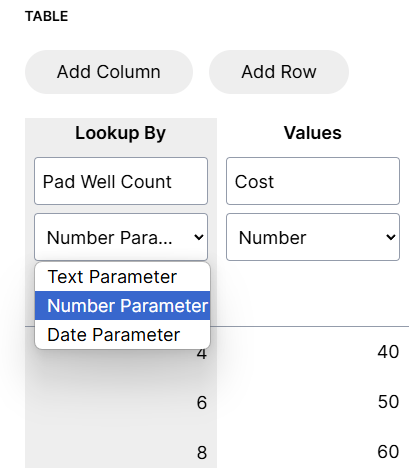
Then you can use these costs with the new lookup_with_parameter function, like lookup_with_parameter("Pad Costs", "Cost", count_same_attribute("Pad")). This function would look up the pad cost based on however many assets have the same value for their "Pad" attribute.
Lookup tables also support date columns for both attributes and parameters. This can be helpful to represent values that change over time.
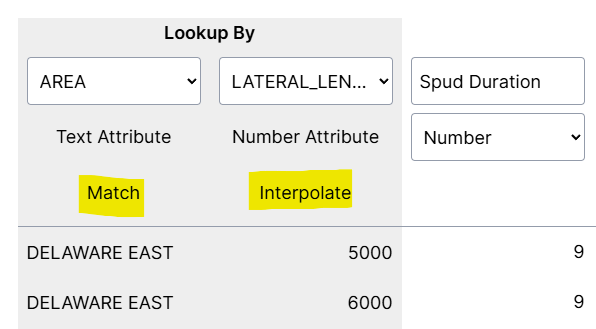
Lookup table columns are labeled in Planner 2.7. This makes it more obvious how the column will be used (matching the values vs. interpolating between them):
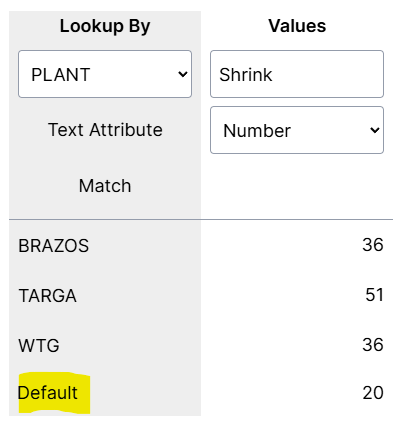
In Planner 2.7, lookup tables also include a default row to use when no matches are found:
🧮 Formulas
Planner 2.7 adds support for dates in formulas. You can use the new date(year, month, day) function to specify a date.
Date comparisons (<, <=, >, >=) are also supported in Planner 2.7, so you can write formulas based on attributes or other functions being beyond a specific date. For example:

A new opex_date() function enables you to use the currently-being-calculated expense date in formulas, so you can use it for date comparisons or as a lookup table parameter:

The opex date function is useful on its own, but its even more interesting when combined with some of the other new functionality in Planner 2.7! For example, it allows you to have a lookup table containing allocated facility opex that changes over time.
📤 Export Potential Production
A new export for "Potential Production" is available in Planner 2.7. The existing production export has been renamed to "Curtailed Production" to make it easy to distinguish between curtailed production and potential production.
Curtailment impacts can now easily be captured without adjusting production limits, downtime, or interference settings. These exports are also available as part of Parquet and Spotfire integrations.
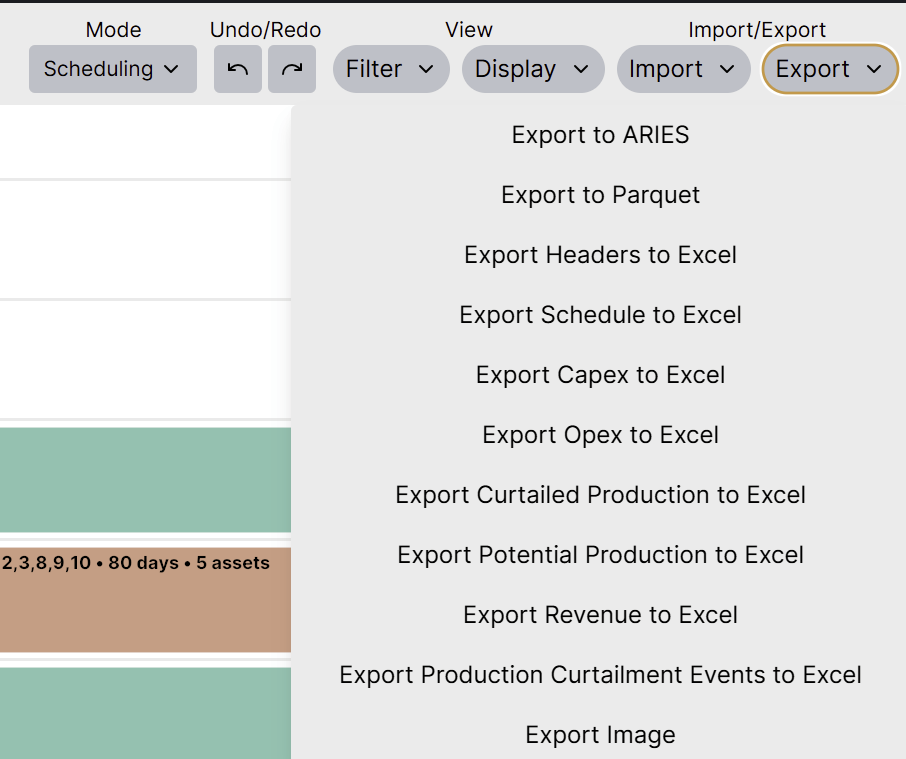
The new potential production export makes it possible to easily compare potential production against curtailed production, without having to adjust production limits, downtime, or interference settings.
The potential production export is also available as part of Parquet and Spotfire integrations.
📅 Excel Export Date Range
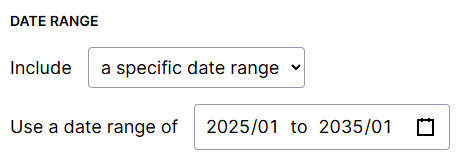
Even though Excel allows about a million rows in a worksheet, it's easy enough to reach this limit when exporting monthly results per asset. While we recommend working with one of the other export formats when possible (e.g. Parquet), sometimes people would just like a simple way to limit the months being exported.
Planner 2.7 adds an option to limit the date range used for all Excel exports in the Settings tab under "Excel Integration":
📩 ComboCurve Integration
There are a few improvements to the ComboCurve integration in Planner 2.7. The ComboCurve integration improves handling for large imports, and automatically retries downloads from ComboCurve if necessary.
The integration also adds new options to import well type, and extends the number of available custom text fields to 35.
🐏 ARIES Integration
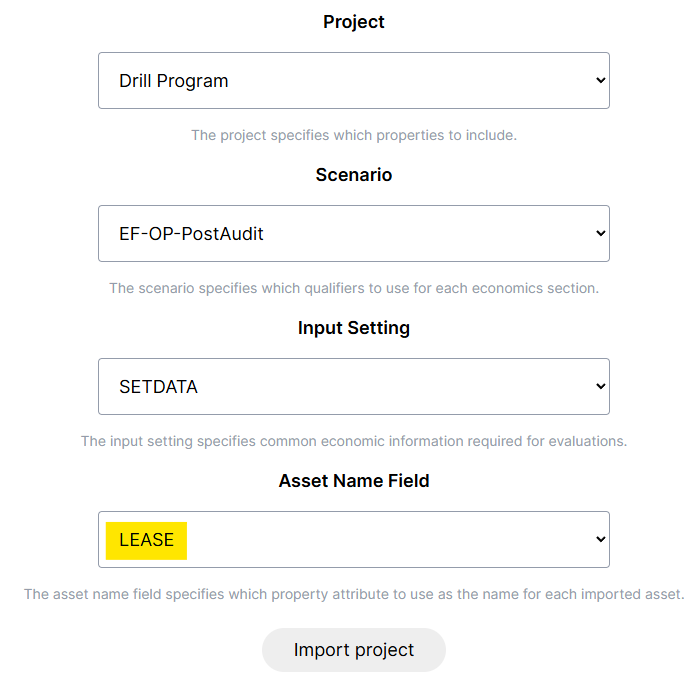
The ARIES integration has been updated in Planner 2.7 to support importing asset names from other columns besides "LEASE". Usually ARIES databases use a "LEASE" field in the master table/AC_PROPERTY for well names. However sometimes databases rename this field to something else.
Now the ARIES integration will allow you to select which column to use for asset name during the initial import:
📊 Production Limits Improvements
In Planner 2.7, you can describe how to prioritize production when production limits are reached (i.e., which wells should be kept online vs. shut-in). You can choose to prioritize assets with earliest production start dates first, latest production start dates first, or specify your own attribute for a custom order.
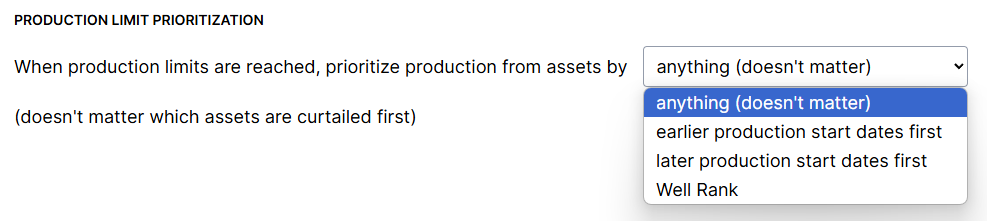
Production limit prioritization is located in the Settings tab under Production settings.
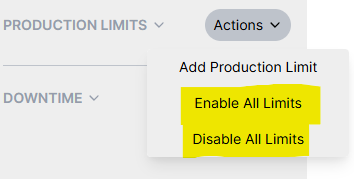
Planner 2.7 also adds a new option under the production limits "Action" button to quickly enable or disable all production limits:
🔄️ Recurring Resource Availability
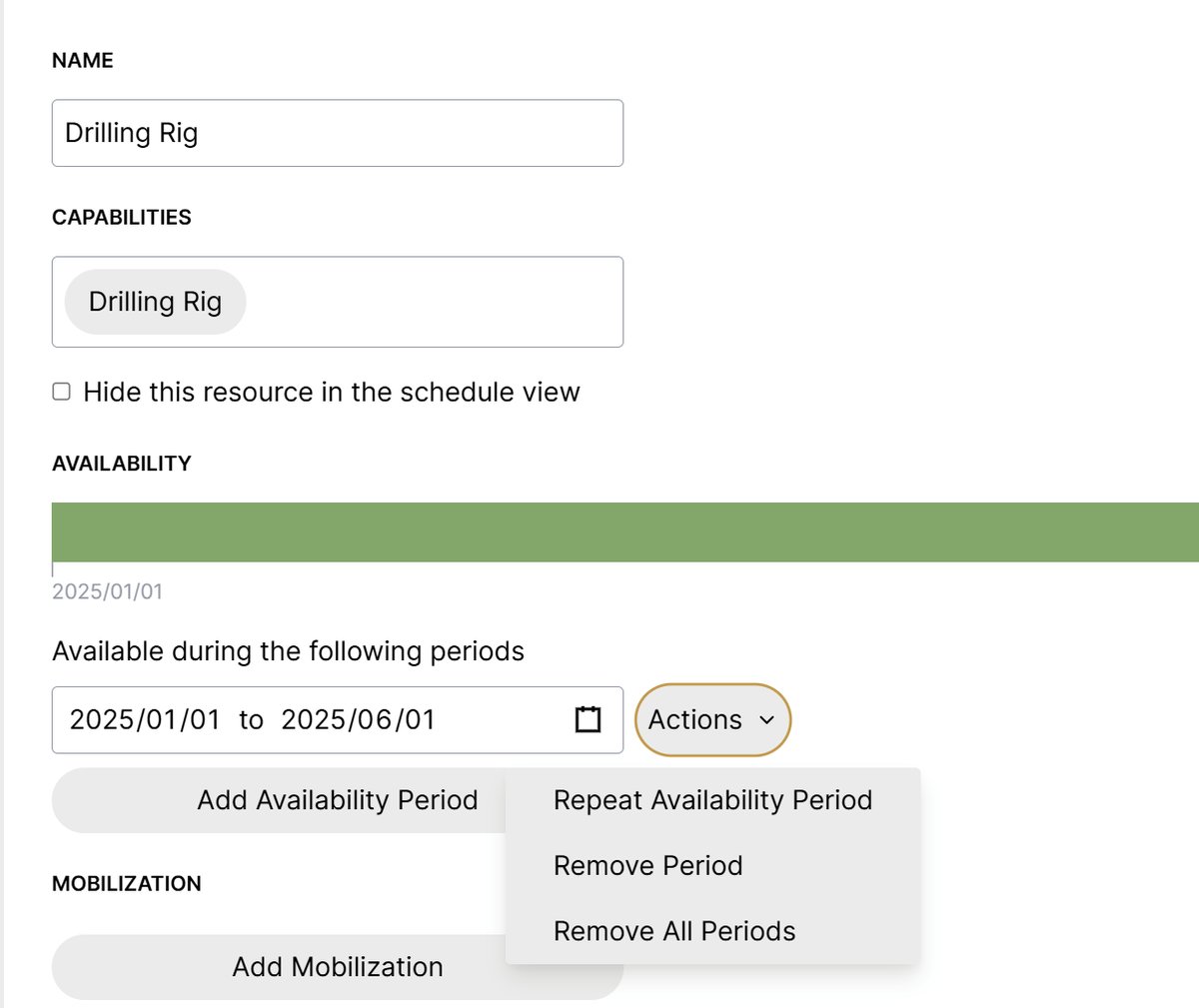
Planner 2.7 makes it easy to repeat availability periods to save time setting up drilling rig and frac crew timing. You can repeat any availability period yearly by using the new option under "Actions":
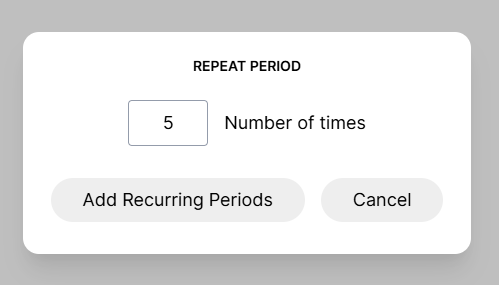
Then specify how many times to repeat the period:
👀 Display Attributes For Groups
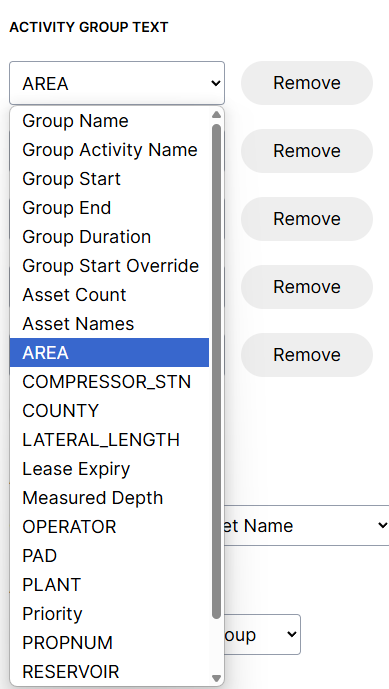
Planner 2.7 allows you to include any attribute to be displayed for groups. If some assets in the group have different values, then the Planner will show each of these values:

The calculation in Planner 2.7 has also undergone huge performance improvements to ensure the new calculations for allocated opex and downtime feel instantaneous. This means your plans will calculate faster even if you don't use any of this new functionality.
Please let us know if you have any questions or would like help integrating any of this new functionality into your plans.