
Using the Gantt Chart | Drag & Drop Scheduling
Customize your display: under Settings > Display Settings, choose fields to make visible, color by attribute and whether or not to group assets. You can also control the timeframe that's visible on the Gantt chart.
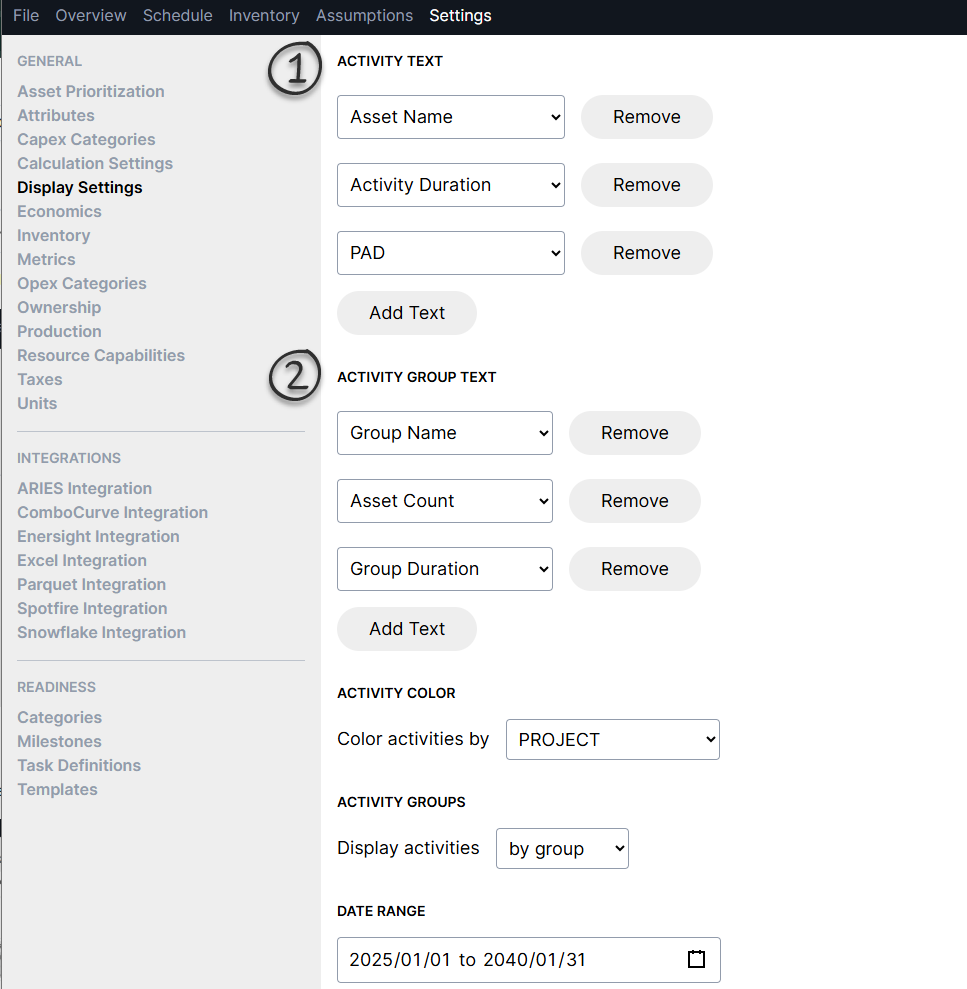
Activity Text: controls what is displayed when looking at individual assets/wells
Activity Group Text: controls what is displayed when looking at assets/wells in grouped view
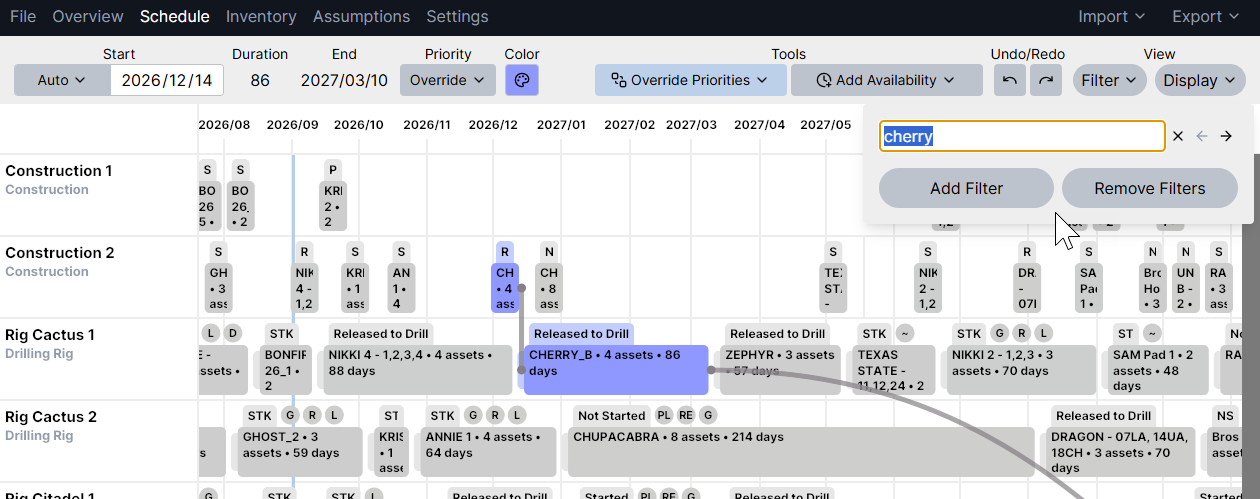
Filter: find assets easily under View > Filter
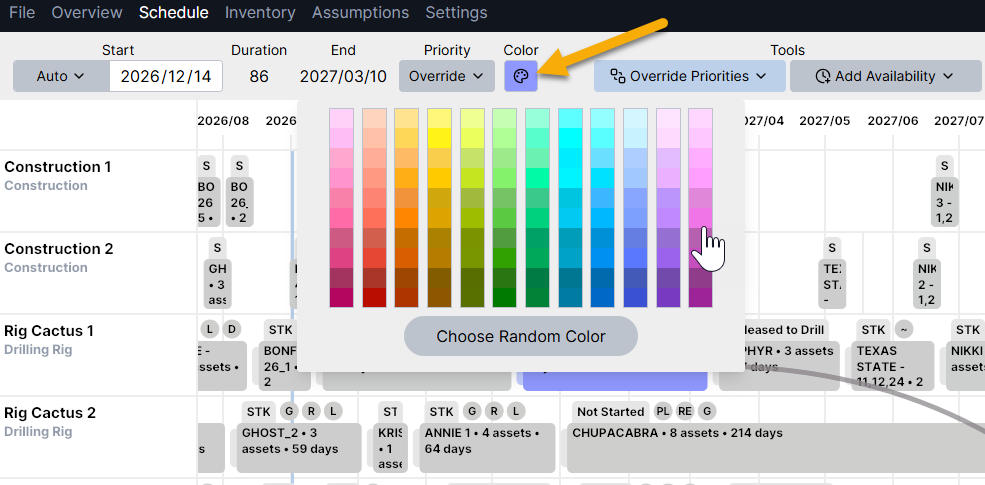
Change colors: use the color picker to customize your view
Group vs asset view: use the command Ctrl + G to toggle between an individual asset/well view and grouped view. The grouped view will correspond to the "grouped by" settings in the asset template, which may be different across activities
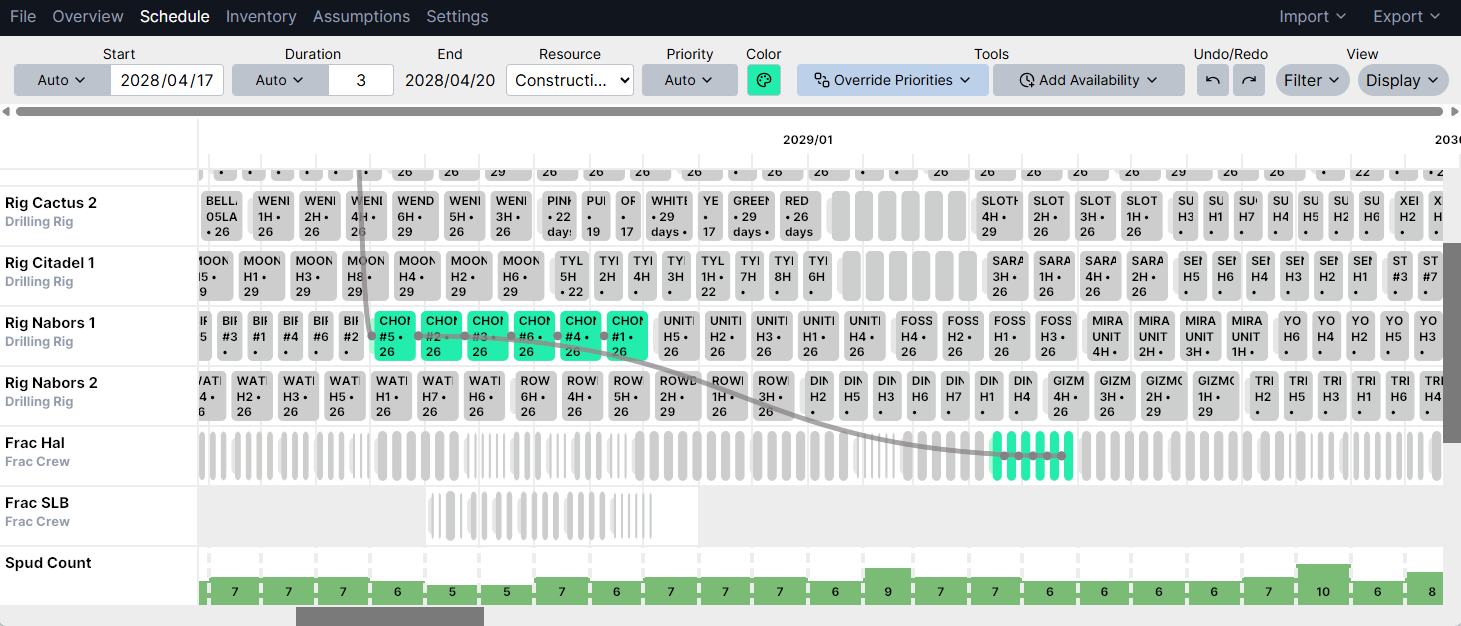
Asset View
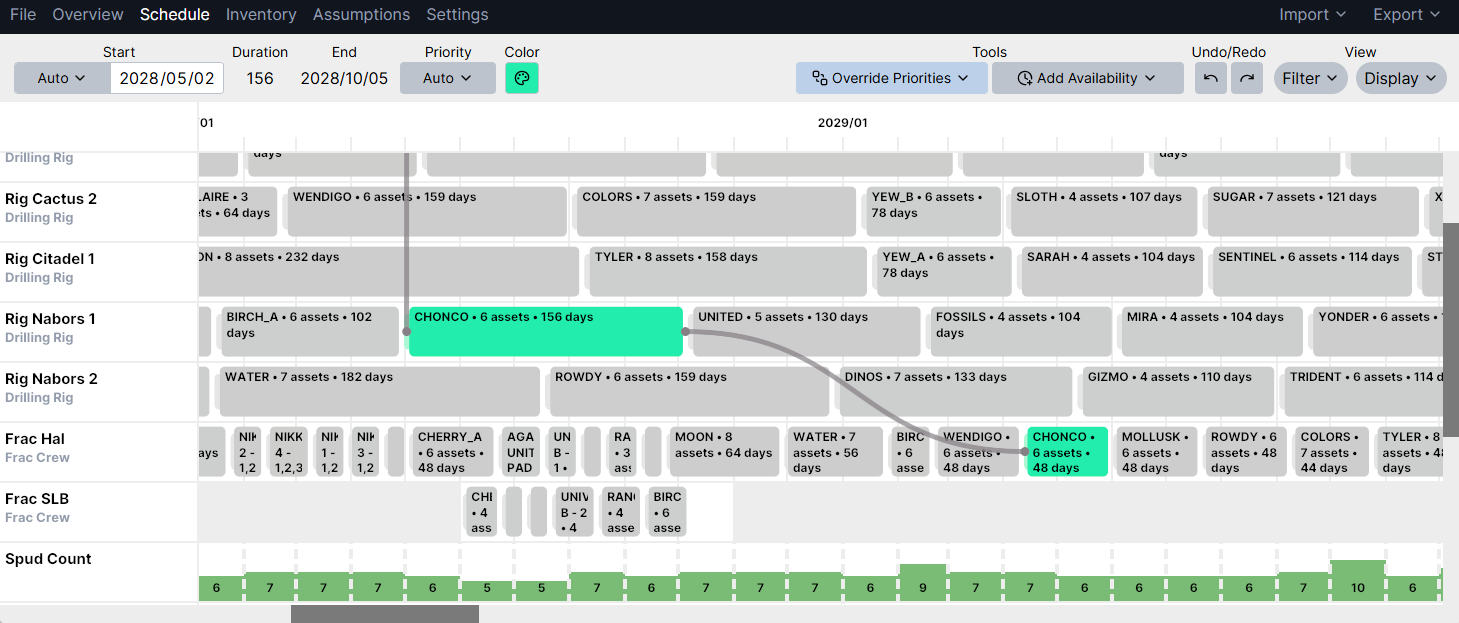
Group View
Scheduling tools: use the scheduling tools to quickly adjust resource availability and control drag & drop behavior
Add or Remove resource availability: choose one of these tools, click and drag the time period across a resource that you would like to adjust
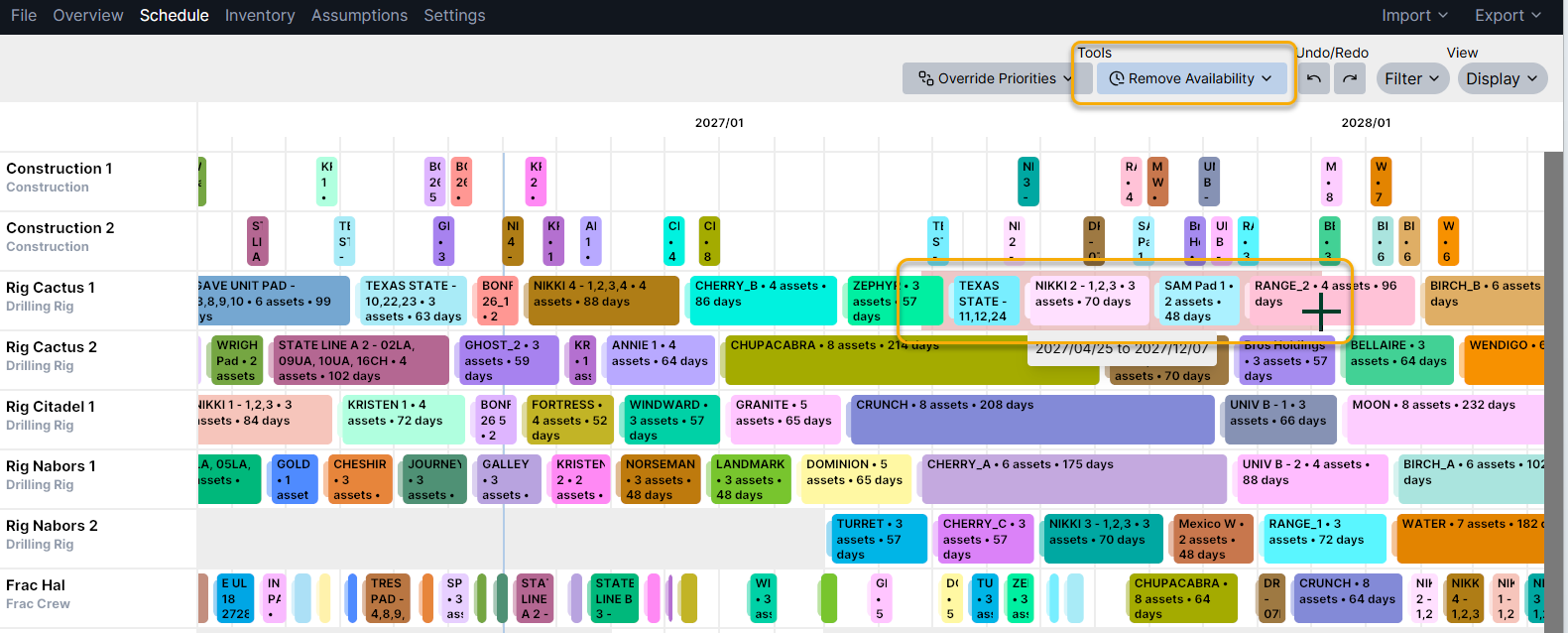
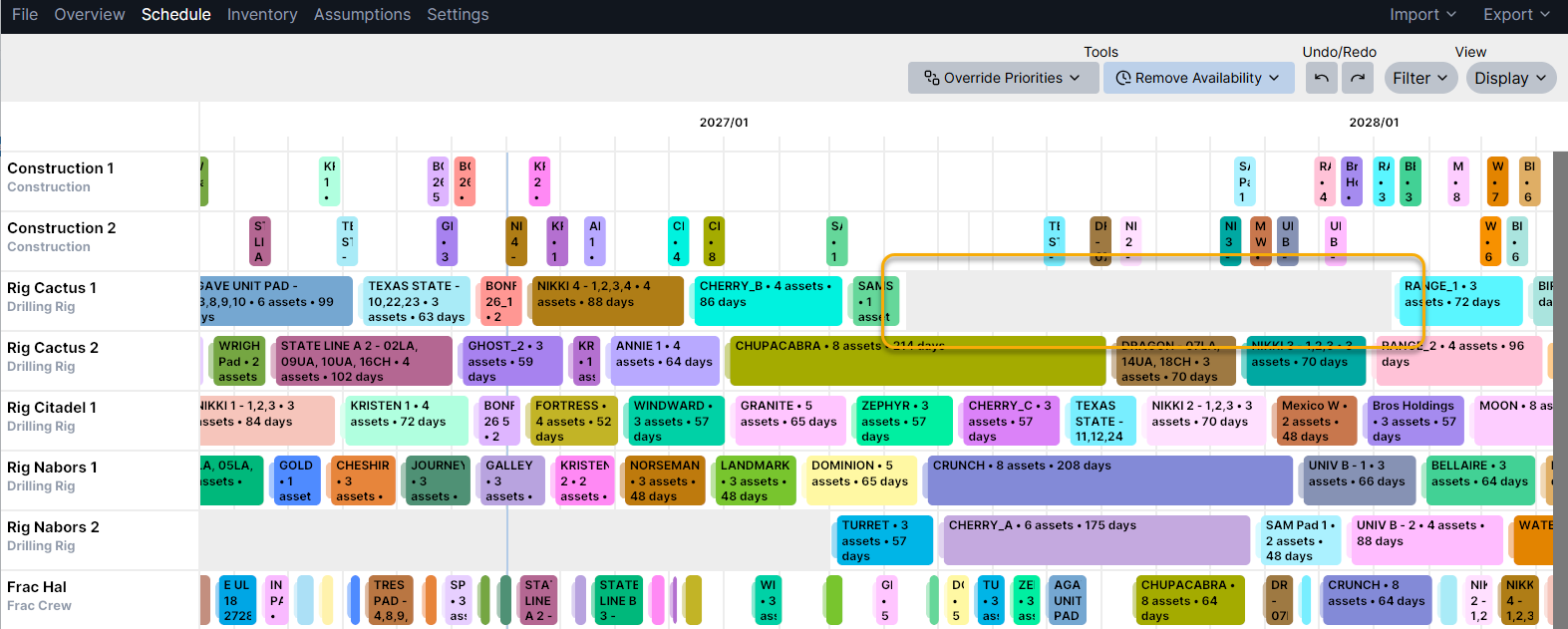
Override Priorities or Override Dates: choose one of these tools to control what happens when you drag & drop assets in the schedule
Override Priorities: this tool allows you to reorder assets and move them to different resources. When you drag & drop using this tool, the default priority is "overridden" for that asset and all that come prior. This is typically used for scenario analysis and when setting the order for a short-term schedule.
Override Dates: this tool allows you to hard-code start dates as you move them around. This is typically used to keep history/actuals up to date, or if there's something in the very near term that needs to be fixed in place.
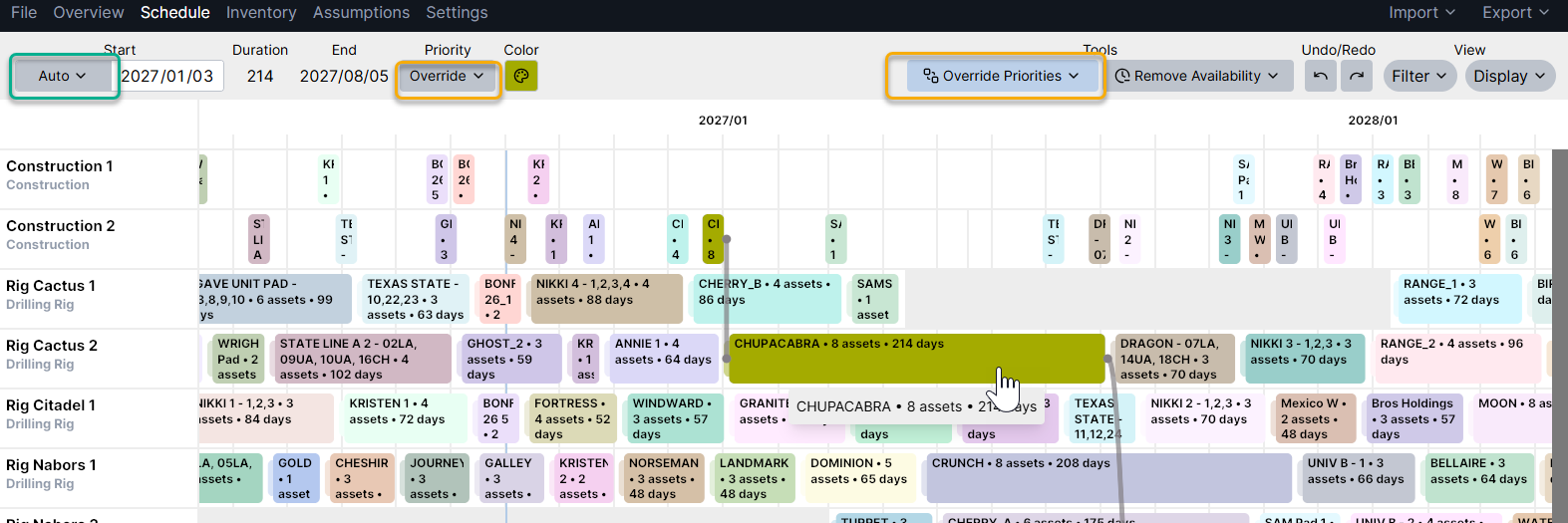
Once you move an asset with one of these tools, the context menu will show "overridden". This can be toggled back to "auto" at any time, and that will reset any scheduling changes made. The asset will be auto-scheduled based on asset template & default priority settings.
In this example, the Chupacabra pad was moved while using "override priorities". You can see in the context menu that the start date is still "auto" and the priority has been set to "override". If something prior to Chupacabra has a duration change, then it's start date will automatically adjust, while keeping it in the same relative order on the resource.
Visualize auto vs override schedule activities: add a filter and select from this list of options to highlight assets that are auto-schedule vs those that have been overridden:
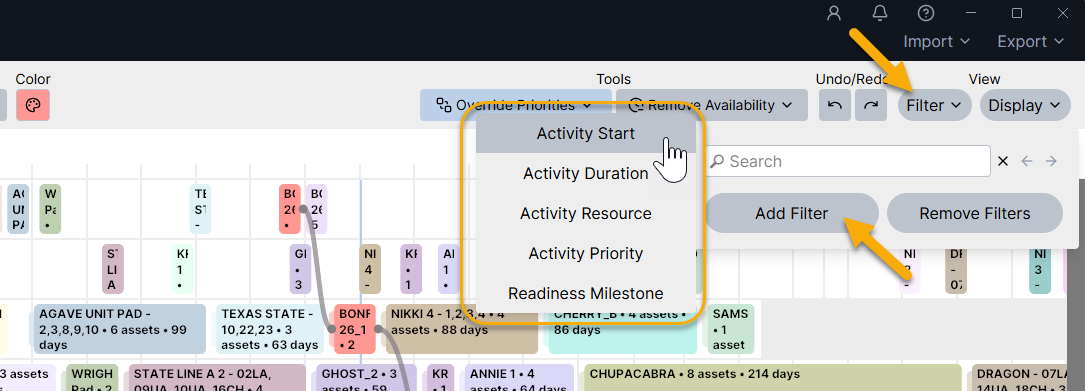
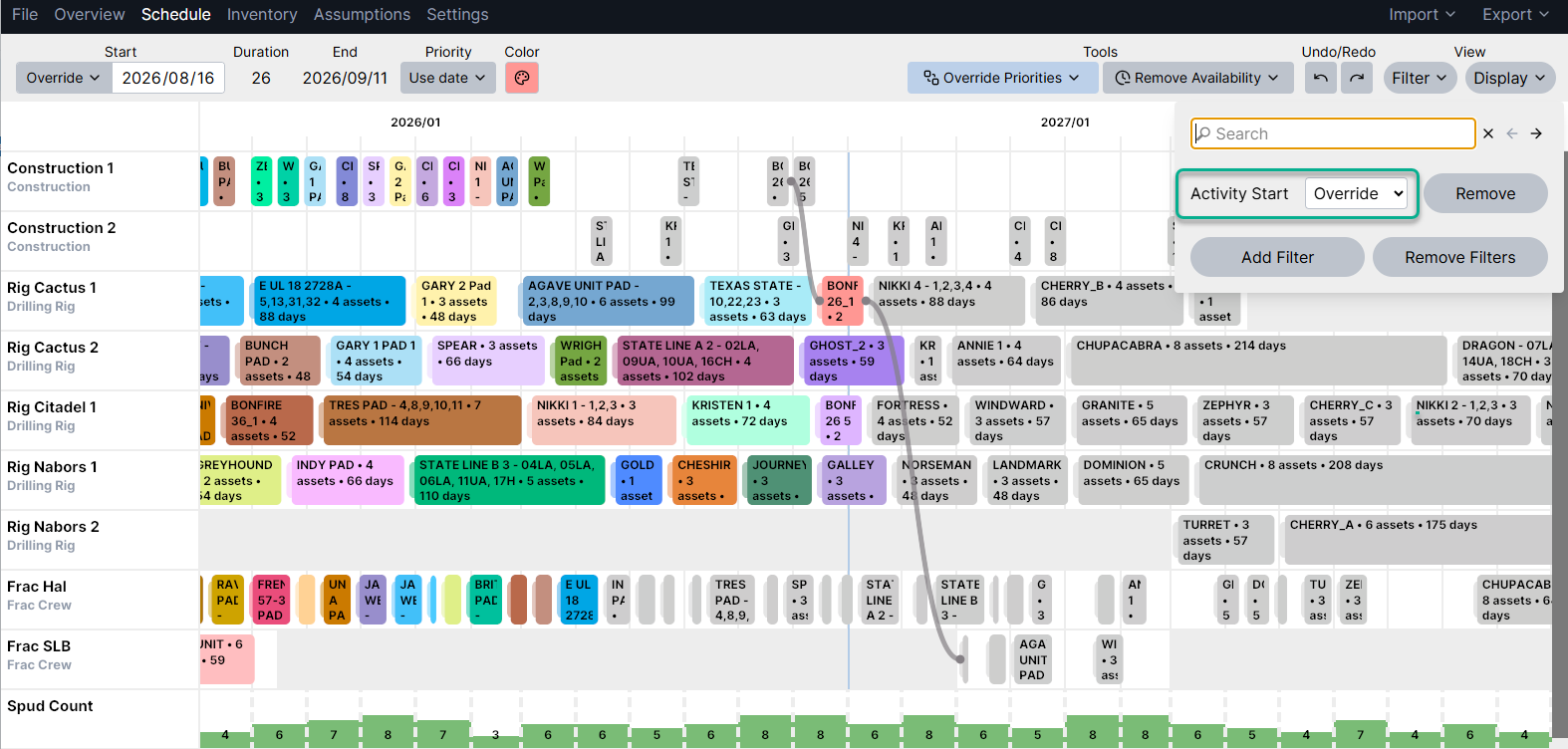
Example showing all activities with Overridden start dates
Importing schedule actuals/bulk updates: you can import schedule details in bulk via Excel or Snowflake. For an example import template, see details in this Excel Integration article